
T7labs Logo
SinghAshir65848
@SinghAshir65848
/March 10, 2026/Short

Scroll Motion Gallery

A dynamic gallery where images rotate and move with scroll using GSAP ScrollTrigger, creating depth and motion. Hover interactions reveal video previews and metadata, enhanced with a subtle Framer Motion parallax effect. ✨
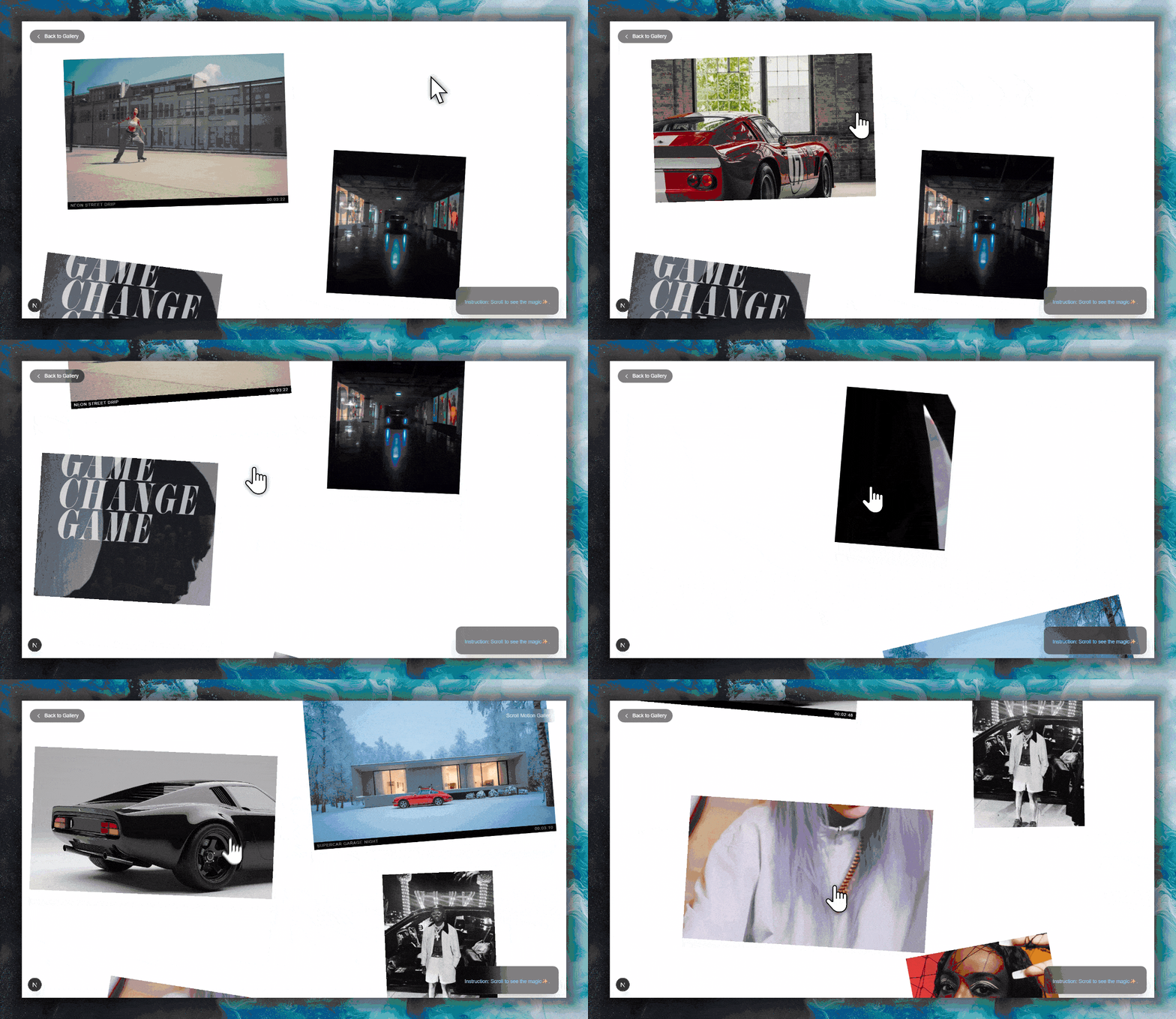
Scroll Motion Gallery autoplaying demo

If you face any issues, refer to the working source code provided.

Initializing the project

Start by creating a new Next.js application and install the required dependencies:

bash
npx create-next-app@latest scroll-gallery
cd scroll-gallery
npm install gsap framer-motion lenis

We'll also use Sass for styling if you prefer (optional).

Component structure

The gallery consists of a main `ScrollGallery` component that renders a container with absolute‑positioned `ParallaxImage` components. Each image gets its position and rotation values from a central `layoutData` array.

ScrollGallery.tsx (simplified)
"use client";

import { useRef } from "react";
import { motion, useScroll, useTransform, useSpring } from "framer-motion";
import gsap from "gsap";
import { ScrollTrigger } from "gsap/ScrollTrigger";

gsap.registerPlugin(ScrollTrigger);

// Each item defines position, size, and rotation angles
type LayoutItem = {
  assetId: string;
  x: number;        // left position in vw
  y: number;        // top position in vh
  w: number;        // width in vw
  h: number;        // height in vh
  rotate: number;   // rotation when entering viewport
  rotateTo: number; // rotation when centered
  mt: number;       // extra top margin
  mb: number;       // extra bottom margin
};

// We'll fill this with actual data later
const layoutData: LayoutItem[] = [ /* … */ ];

function ParallaxImage({ item }) {
  // ... animation logic
  return ( /* JSX */ );
}

export default function ScrollGallery() {
  return (
    <div style={{ paddingTop: "15vh", paddingBottom: "20vh" }}>
      <div style={{ position: "relative", width: "100%", height: "1800vh" }}>
        {layoutData.map((item) => (
          <ParallaxImage key={item.assetId} item={item} />
        ))}
      </div>
    </div>
  );
}

Layout and asset data

Each image is placed using absolute positioning with `vw` and `vh` units. The `layoutData` array defines the coordinates and rotation angles. The rotation smoothly changes from `rotate` (when the image enters) to `rotateTo` (when centered) and then to a fraction of the original as it leaves.

Example layout item
{
  assetId: "a01",
  x: 8, y: 8,       // 8vw from left, 8vh from top
  w: 40, h: 48,     // 40vw wide, 48vh tall
  rotate: -9,       // starts at -9deg
  rotateTo: -1,     // settles at -1deg when centered
  mt: 0, mb: 5
}

Asset details (image/video paths, label, duration) are stored in a separate `assetData.ts` file. A helper `getAsset` retrieves the data for a given ID. Here's a minimal example:

lib/assetData.ts (excerpt)
export type Asset = {
  id: string;
  image?: string;
  video?: string;
  label: string;
  time: string;
};

export const assets: Record<string, Asset> = {
  a01: {
    id: "a01",
    image: "/images/neon-street.jpg",
    video: "/videos/neon-street.mp4",
    label: "NEON STREET DRIP",
    time: "00:03:22"
  },
  // ... more assets
};

export function getAsset(id: string): Asset | undefined {
  return assets[id];
}

Core animations

Each `ParallaxImage` combines two animation techniques:

**GSAP + ScrollTrigger** for rotation – we create two tweens that update based on scroll position, from entry to center and from center to exit.

**Framer Motion** for parallax – we use `useScroll` and `useTransform` to shift the image vertically based on scroll progress, smoothed with `useSpring`.

Rotation with GSAP
useEffect(() => {
  const el = rotateRef.current;
  if (!el) return;

  // Set initial rotation
  gsap.set(el, { rotation: item.rotate });

  // Tween from entry to center
  const tweenIn = gsap.fromTo(
    el,
    { rotation: item.rotate },
    {
      rotation: item.rotateTo,
      ease: "none",
      scrollTrigger: {
        trigger: scrollRef.current,
        start: "top bottom",
        end: "center center",
        scrub: 1.5,
      },
    }
  );

  // Tween from center to exit
  const tweenOut = gsap.fromTo(
    el,
    { rotation: item.rotateTo },
    {
      rotation: item.rotate * 0.6,
      ease: "none",
      scrollTrigger: {
        trigger: scrollRef.current,
        start: "center center",
        end: "bottom top",
        scrub: 1.5,
      },
    }
  );

  return () => {
    tweenIn.scrollTrigger?.kill();
    tweenOut.scrollTrigger?.kill();
  };
}, [item.rotate, item.rotateTo]);
Parallax with Framer Motion
const { scrollYProgress } = useScroll({
  target: scrollRef,
  offset: ["start end", "end start"],
});
const smoothProgress = useSpring(scrollYProgress, {
  damping: 50,
  stiffness: 80,
  mass: 0.5,
});
const scrollY = useTransform(smoothProgress, [0, 1], [12, -12]);

// Apply to motion.div:
<motion.div style={{ y: scrollY, ... }}>...</motion.div>

Hover interactions reveal video previews and metadata by toggling opacity and scaling the image. A simple `useState` toggles the hover state, and CSS transitions handle the visuals.

Adding smooth scrolling with Lenis

To give the gallery a buttery‑smooth feel, we'll integrate Lenis, a lightweight smooth scroll engine. Create a provider component that initializes Lenis and wraps your application.

components/LenisProvider.tsx
"use client";
import { useEffect, useRef, ReactNode } from "react";
import Lenis from "lenis";

export default function LenisProvider({ children }: { children: ReactNode }) {
  const lenisRef = useRef<Lenis | null>(null);

  useEffect(() => {
    if (!lenisRef.current) {
      lenisRef.current = new Lenis({ 
        lerp: 0.1,        // Smoothness factor (0 = no smoothing, 1 = max)
        smoothWheel: true  // Enable smooth mouse wheel scrolling
      });

      function raf(time: number) {
        lenisRef.current?.raf(time);
        requestAnimationFrame(raf);
      }
      requestAnimationFrame(raf);
    }

    return () => {
      if (lenisRef.current) {
        lenisRef.current.destroy();
        lenisRef.current = null;
      }
    };
  }, []);

  return <>{children}</>;
}

Now wrap your root layout with this provider to enable smooth scrolling everywhere:

app/layout.tsx
import LenisProvider from '@/components/LenisProvider';

export default function RootLayout({ children }) {
  return (
    <html lang="en">
      <body>
        <LenisProvider>
          {children}
        </LenisProvider>
      </body>
    </html>
  );
}

GSAP ScrollTrigger works seamlessly with Lenis – no extra configuration needed. The scroll‑based animations will now be driven by Lenis's smooth scroll, creating a cohesive experience.

Using the component

Simply import `ScrollGallery` into any page (make sure it's a client component). The gallery will fill the available width and create a long scrollable area.

app/page.tsx
import ScrollGallery from '@/components/ScrollGallery';

export default function Home() {
  return (
    <main>
      <ScrollGallery />
    </main>
  );
}