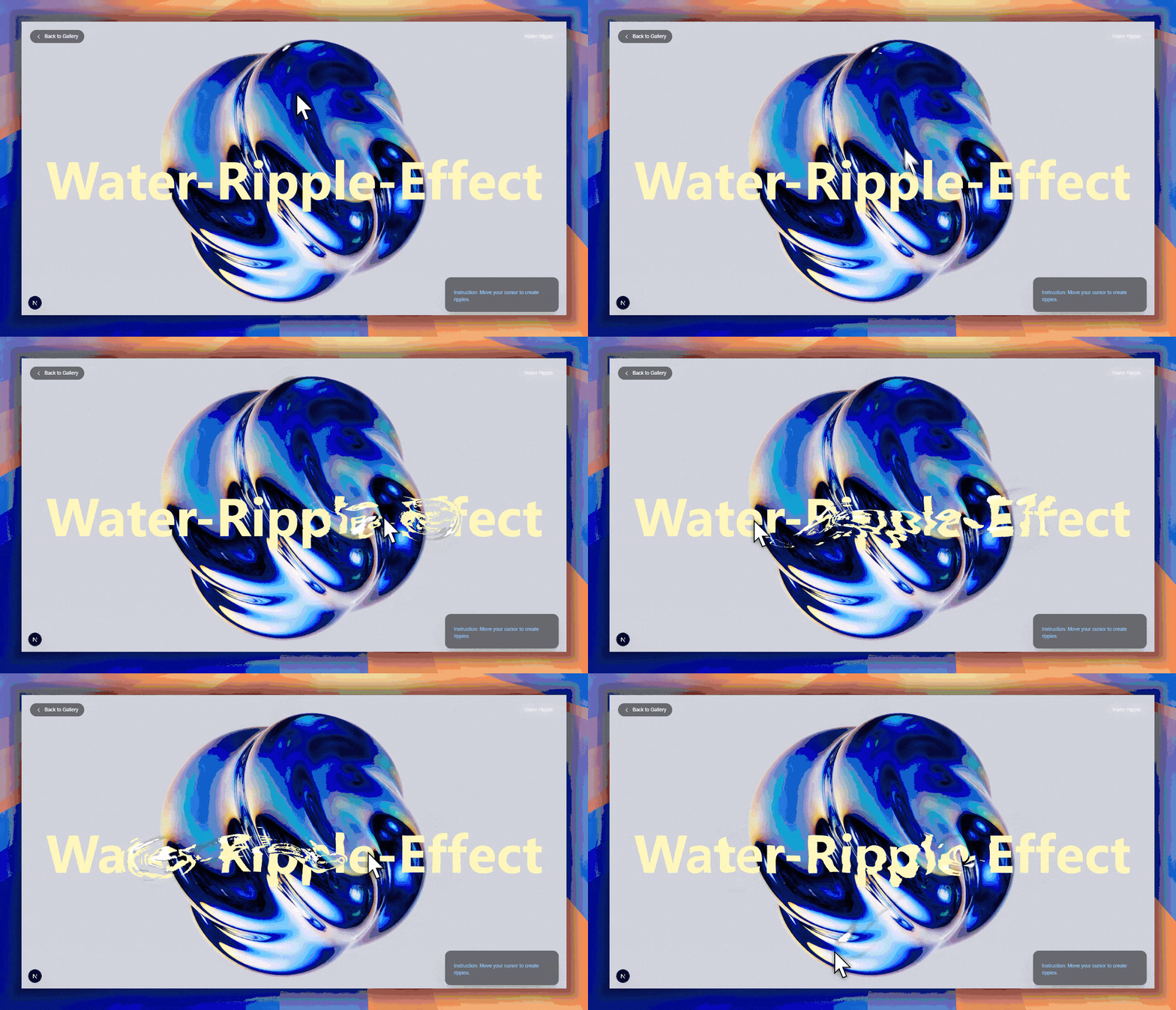
useEffect(() => {
     const canvas = canvasRef.current;

    // Scene, camera, renderer
    const scene = new THREE.Scene();
    const simScene = new THREE.Scene();
    const camera = new THREE.OrthographicCamera(-1, 1, 1, -1, 0, 1);

    const renderer = new THREE.WebGLRenderer({
      canvas,
      antialias: true,
      alpha: true,
      preserveDrawingBuffer: true,
    });
    renderer.setPixelRatio(Math.min(window.devicePixelRatio, 2));
    renderer.setSize(window.innerWidth, window.innerHeight);

    const mouse = mouseRef.current;

    // Render targets for ping-pong simulation
    const width = window.innerWidth * window.devicePixelRatio;
    const height = window.innerHeight * window.devicePixelRatio;
    const options = {
      format: THREE.RGBAFormat,
      type: THREE.FloatType,
      minFilter: THREE.LinearFilter,
      magFilter: THREE.LinearFilter,
      stencilBuffer: false,
      depthBuffer: false,
    };

    let rtA = new THREE.WebGLRenderTarget(width, height, options);
    let rtB = new THREE.WebGLRenderTarget(width, height, options);

    // Simulation material
    const simMaterial = new THREE.ShaderMaterial({
      uniforms: {
        textureA: { value: null },
        mouse: { value: mouse },
        resolution: { value: new THREE.Vector2(width, height) },
        time: { value: 0 },
        frame: { value: 0 },
      },
      vertexShader: simulationVertexShader,
      fragmentShader: simulationFragmentShader,
    });

    // Render material
    const renderMaterial = new THREE.ShaderMaterial({
      uniforms: {
        textureA: { value: null },
        textureB: { value: null },
      },
      vertexShader: renderVertexShader,
      fragmentShader: renderFragmentShader,
      transparent: true,
    });

    const plane = new THREE.PlaneGeometry(2, 2);
    const simQuad = new THREE.Mesh(plane, simMaterial);
    const renderQuad = new THREE.Mesh(plane, renderMaterial);

    simScene.add(simQuad);
    scene.add(renderQuad);

    // Create canvas for text texture
    const textCanvas = document.createElement('canvas');
    let canvasWidth = window.innerWidth * window.devicePixelRatio;
    let canvasHeight = window.innerHeight * window.devicePixelRatio;
    textCanvas.width = canvasWidth;
    textCanvas.height = canvasHeight;
    const ctx = textCanvas.getContext('2d', { alpha: true });

    let fontSize = Math.round(250 * window.devicePixelRatio);
    const textString = "Please Move the cursor over the text";

    function clearCanvas() {
      ctx.clearRect(0, 0, textCanvas.width, textCanvas.height);
      ctx.fillStyle = "transparent";
      ctx.fillRect(0, 0, textCanvas.width, textCanvas.height);
    }

    function drawTwoLineText() {
      clearCanvas();
      fontSize = Math.round(250 * window.devicePixelRatio);
      const maxWidth = textCanvas.width * 0.9;

      ctx.fillStyle = '#fef4b8';
      ctx.font = `bold ${fontSize}px system-ui, -apple-system, BlinkMacSystemFont, "Segoe UI", Roboto, Helvetica, Arial, sans-serif`;
      ctx.textAlign = 'center';
      ctx.textBaseline = 'middle';

      const words = textString.split(' ');
      let splitIndex = -1;
      for (let offset = 0; offset <= Math.floor(words.length / 2); offset++) {
        const mid = Math.floor(words.length / 2);
        const iLeft = mid - offset;
        const iRight = mid + offset;
        const candidates = [];
        if (iLeft > 0) candidates.push(iLeft);
        if (iRight < words.length) candidates.push(iRight);
        let found = false;
        for (const idx of candidates) {
          const line1 = words.slice(0, idx).join(' ');
          const line2 = words.slice(idx).join(' ');
          if (
            ctx.measureText(line1).width <= maxWidth &&
            ctx.measureText(line2).width <= maxWidth
          ) {
            splitIndex = idx;
            found = true;
            break;
          }
        }
        if (found) break;
      }

      if (splitIndex === -1) {
        let tempFont = fontSize;
        while (tempFont > 10) {
          ctx.font = `bold ${tempFont}px system-ui, -apple-system, BlinkMacSystemFont, "Segoe UI", Roboto, Helvetica, Arial, sans-serif`;
          const idx = Math.floor(words.length / 2);
          const line1 = words.slice(0, idx).join(' ');
          const line2 = words.slice(idx).join(' ');
          if (
            ctx.measureText(line1).width <= maxWidth &&
            ctx.measureText(line2).width <= maxWidth
          ) {
            fontSize = tempFont;
            splitIndex = idx;
            break;
          }
          tempFont = Math.floor(tempFont * 0.95);
        }
        if (splitIndex === -1) splitIndex = Math.floor(words.length / 2);
        ctx.font = `bold ${fontSize}px system-ui, -apple-system, BlinkMacSystemFont, "Segoe UI", Roboto, Helvetica, Arial, sans-serif`;
      }

      const line1 = words.slice(0, splitIndex).join(' ');
      const line2 = words.slice(splitIndex).join(' ');
      const lineHeight = fontSize * 0.6;

      ctx.fillText(line1, textCanvas.width / 2, textCanvas.height / 2 - lineHeight / 2);
      ctx.fillText(line2, textCanvas.width / 2, textCanvas.height / 2 + lineHeight / 2);
    }

    drawTwoLineText();

    const textTexture = new THREE.CanvasTexture(textCanvas);
    textTexture.minFilter = THREE.LinearFilter;
    textTexture.magFilter = THREE.LinearFilter;
    textTexture.format = THREE.RGBAFormat;

    // Mouse move listener
    const onMouseMove = (e) => {
      mouse.x = e.clientX * window.devicePixelRatio;
      mouse.y = (window.innerHeight - e.clientY) * window.devicePixelRatio;
    };
    const onMouseLeave = () => {
      mouse.set(0, 0);
    };

    renderer.domElement.addEventListener('mousemove', onMouseMove);
    renderer.domElement.addEventListener('mouseleave', onMouseLeave);

    // Resize handler
    const onResize = () => {
      const newWidth = window.innerWidth * window.devicePixelRatio;
      const newHeight = window.innerHeight * window.devicePixelRatio;

      renderer.setSize(window.innerWidth, window.innerHeight);
      rtA.setSize(newWidth, newHeight);
      rtB.setSize(newWidth, newHeight);
      simMaterial.uniforms.resolution.value.set(newWidth, newHeight);

      textCanvas.width = newWidth;
      textCanvas.height = newHeight;
      drawTwoLineText();
      textTexture.needsUpdate = true;
    };
    window.addEventListener('resize', onResize);

    // Animation loop
    let frame = 0;
    let animationFrameId;

    const animate = () => {
      simMaterial.uniforms.frame.value = frame++;
      simMaterial.uniforms.time.value = performance.now() / 1000;

      simMaterial.uniforms.textureA.value = rtA.texture;
      renderer.setRenderTarget(rtB);
      renderer.render(simScene, camera);

      renderMaterial.uniforms.textureA.value = rtB.texture;
      renderMaterial.uniforms.textureB.value = textTexture;
      renderer.setRenderTarget(null);
      renderer.render(scene, camera);

      const temp = rtA;
      rtA = rtB;
      rtB = temp;

      animationFrameId = requestAnimationFrame(animate);
    };

    animate();

    // Cleanup on unmount
    return () => {
      renderer.domElement.removeEventListener('mousemove', onMouseMove);
      renderer.domElement.removeEventListener('mouseleave', onMouseLeave);
      window.removeEventListener('resize', onResize);
      cancelAnimationFrame(animationFrameId);

      renderer.dispose();
      rtA.dispose();
      rtB.dispose();
      textTexture.dispose();
    };

  }, []);